Winget is a package manager for your Windows machine. Every Windows installation comes with Winget preinstalled. But what if you don’t have Winget installed on your Windows machine? Well, in this blog, I’m going to show you how you can download and install Winget for your Windows machine. So, without wasting any further time, let’s get straight into it.
Prerequisites
Before we begin installing Winget, you must know the requirements. You can’t just install Winget on a Windows xp machine. Here is what windows say :
The client requires Windows 10 1809 (build 17763) or later at this time. Windows Server 2019 is not supported as the Microsoft Store is not available nor are updated dependencies. It may be possible to install on Windows Server 2022, this should be considered experimental (not supported) and requires dependencies to be manually installed as well.
Summing up, If you have a Windows 10 machine, you probably can install Winget on it. Chances are that you already have Winget preinstalled on your Windows 10 machine. In case you want to cheque which build of Windows 10 you have, Just write the following command in the terminal:
winver You can also press ctrl + R, open up the Windows run utility and write the same command. It is going to open up the About Windows Box whichi will look something like this:
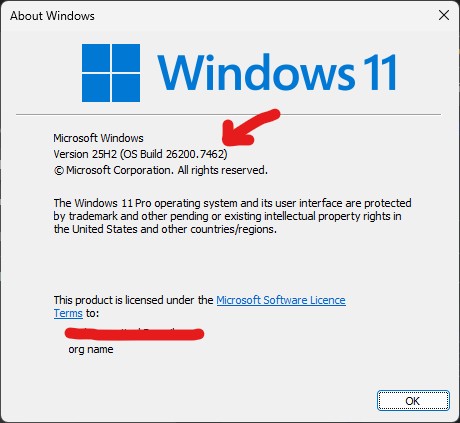
Hey Cortana, In the above image, you can see I am using windows 11 and my version is 25H2. You can also see the build version of the Windows that I’m using. If you are using Windows 10 you should match the version and build of your operating system before trying to download Wingate.
This is because, if you’re using an older version of Windows 10, the Winget might not be available for your machine. Even if you try to download it, it might misbehave due to a dependency mismatch.
When can you install Winget? If you have Windows 10 1809 (build 17763) or later, you’re good to go. If not, then try to upgrade your operating system first, and then install Winget. While upgrading to a newer operating system or a newer build of your current OS, there is a high likelihood of getting Winget as a preinstalled software.
Okay, moving on, now we are going to see how you can actually install Winget, In case you have the required version of the operating system, and yet there is no Winget installed on your system.
The Official Way of Installing Winget
Most people don’t know about this, but Winget can be downloaded through the Microsoft Store. Yes, the Microsoft Store can be used for downloading Winget, although the name is not the same. In the Microsoft Store, Winget can be downloaded by installing the App Installer. This is the default name that Microsoft gave to Winget when installing it through the Microsoft Store.
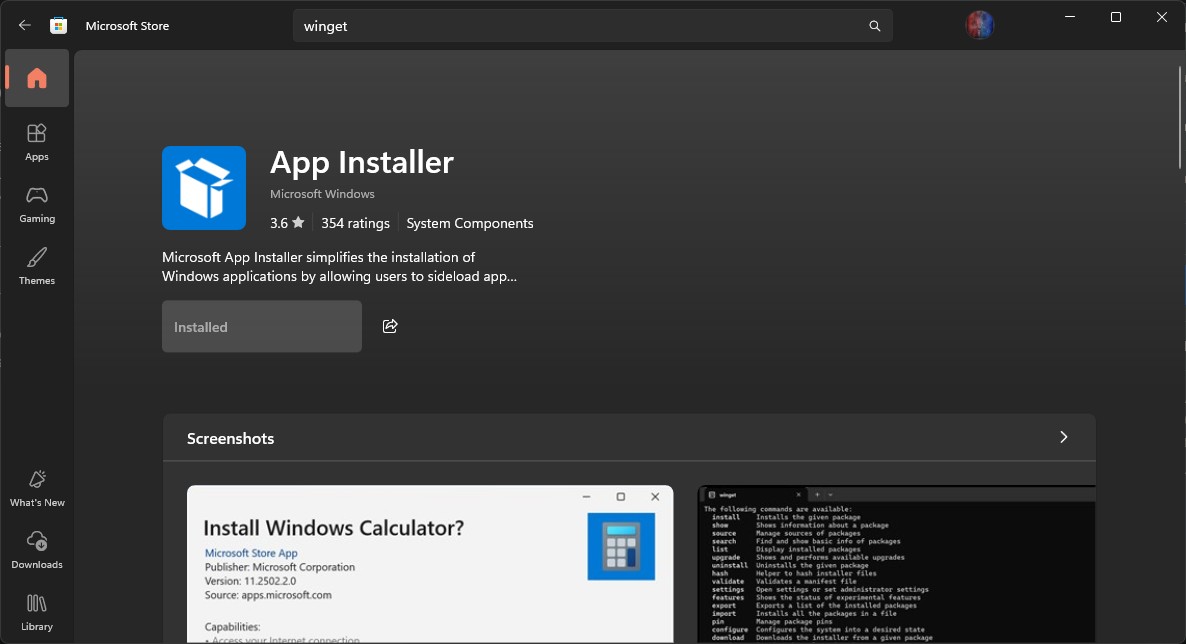
As you can see in the above image, the application name is App Installer. In case you don’t have Winget on your Windows machine, you can download it through the Microsoft Store by searching for App Installer.
If you are unable to find the App Installer on the Windows Store, here is the link for it: Download Winget From Microsoft Store
Great, now you know how you can get Winget. But what if you don’t see App Installer on the Microsoft Store, or the Microsoft Store is not working itself? If your Microsoft Store is not working, that’s bad news, but that doesn’t stop you from installing Winget.
Install WinGet Through Github
Wingate is an open-source software, which Microsoft hosts on GitHub. This means all of the manifest that this software requires and the installation executable etc. everything is present on the open-source community. Therefore, in case nothing else is working for you, you can just go to the GitHub and download Winget from there.
All you have to do is just click on the link above that is going to take you to the official Windows Winget GitHub repository. From there, all you have to do is download the .msixbundle for Winget.
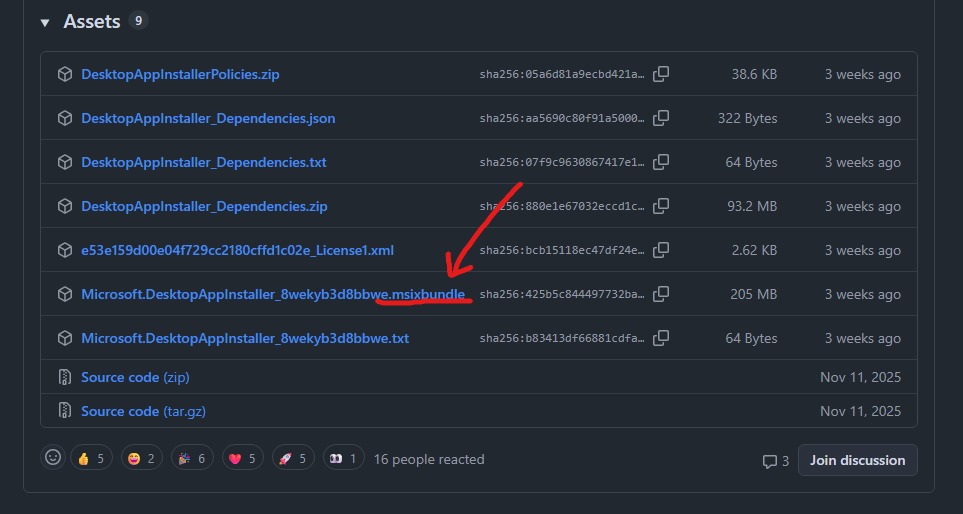
But wait, how are you going to install the .msixbundle? Since the file is not an .exe or an .msi installer, we cannot just double-click it and run it as a normal executable. But then, how are you going to install Winget when you can’t even execute the installer?
Don’t worry, it’s not a big deal. All you have to do is open up a terminal where you have downloaded the .msixbundle file and write a simple command:
Add-AppxPackage -Path .\winget.msixbundle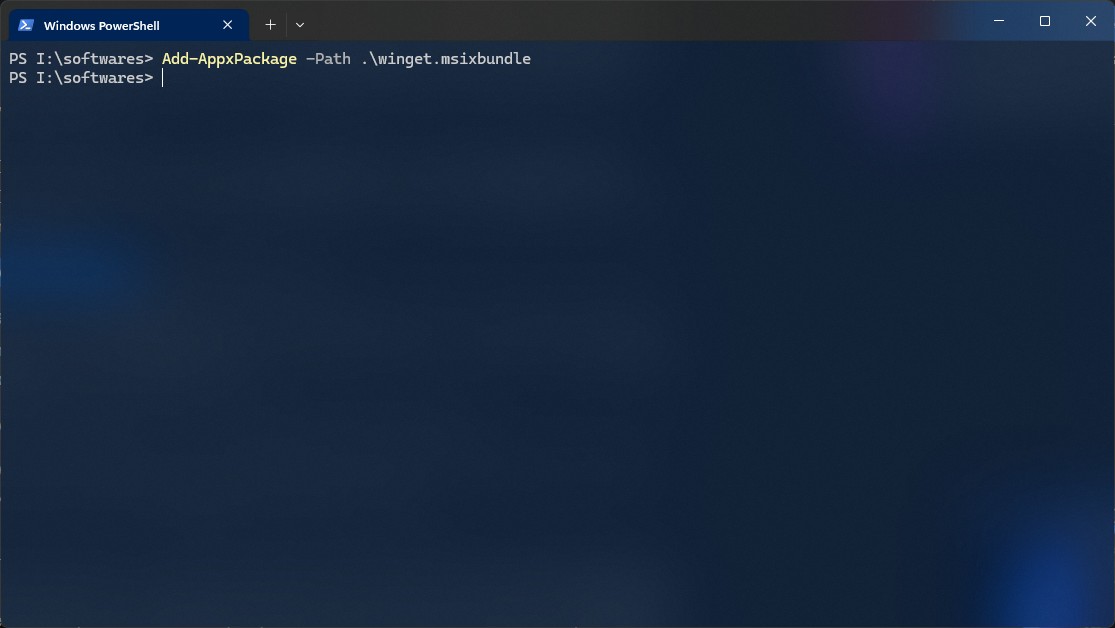
As you can see in the above image, I have renamed the file to winget.msixbundle. Remember, I am running this command where I have downloaded the file from the previous step.
After running the above command, your Winget should be installed. To check if your Winget is installed, all you have to do is open up a new terminal and write the following command:
winget -v If you see an output similar to the image below, You have successfully installed Winget through GitHub:
PS I:\softwares> winget -v
v1.12.440