Winget is just like magic for Windows. This is because it solves most of the installation problems at once. Have you ever completely uninstalled your Windows operating system and tried to reinstall it again? Yes, I mean formatting your computer? If you have gone through the formatting, you must know how frustrating and time-consuming it is to download all of the software that you want on your new, freshly installed Windows operating system.
Well, Winget makes it a lot simpler. Winget is a Windows Package Manager, which can be used to install multiple software just by a simple command. This means you don’t have to go to each software’s website, download its executable, and then start the installation steps for every single software that you want on your device. Doesn’t that sound amazing to download everything that you want right at once, without wasting any time and effort?
In this blog, I’m going to show you what is Winget, where you can download Winget, how you can use it, and how does it even work? We’ll go through each of these questions one by one in this blog. So, let’s get straight into it.
What is a Package Manager ?
Just imagine you go into a hotel for a good dinner. You call the waiter for the menu and give him your order. You don’t have to worry about all of the other things, like cooking food and getting the ingredients ready. The waiter himself goes to the kitchen, talks to the chef, and serves you your food when it’s ready.
Similarly, a package manager is just like a waiter who does everything for you. You can ask your package manager to show you details of software available for download, and tell it to download the software for you.
Now that you have a brief idea of what a package manager actually is, here is a list of things that a package manager can do for you:
- Install software applications
- Update or upgrade existing software
- Uninstall or remove software
- Search for software in a central repository
- List all currently installed applications
- Check for available updates
I have truncated the list because the things the package manager can do are so many. But you get the idea, right? The package manager is just like a waiter that you can call whenever you are playing around with your packages or software.
Windows Package Manager: Winget
If you are familiar with the Linux operating system, you must have heard of package managers like apt or pacman. Well, Windows also wanted something similar for their operating system. So, they created their own package manager, which they named Winget.
But Winget is not a decade-old thing. Windows has recently started to supply Winget with their newer Windows 10 and 11 operating systems. Here is what Microsoft says about Winget:
The client requires Windows 10 1809 (build 17763) or later at this time. Windows Server 2019 is not supported as the Microsoft Store is not available nor are updated dependencies. It may be possible to install on Windows Server 2022, this should be considered experimental (not supported) and requires dependencies to be manually installed as well.
The above statement says that if you have an older operating system, which is older than Windows 10, like Windows 8.1, Winget might not be available for you. Even if you have Windows 10 installed, you must make sure that you have the latest version and build of the OS to enjoy the full support of Winget.
Since Winget is a CLI tool, you can also use it in your scripts for automation purposes. You can also use it to install multiple software at once on your machine, or upgrade all of the software present to their latest versions with just one single command.
How to Download and Install Winget ?
If you have the latest Windows operating system, then Winget is already installed for you. As Microsoft ships their operating system with a pre-installed version of Winget. To check if you have Winget installed, all you have to do is just open up a terminal and write the command below.
winget -vWhen you execute the above command, you must see a version of winget in your output, just like this:
PS I:\softwares> winget -v
v1.12.440As you can see above, I have the Winget version 1.12.440. If you get a similar output, but with a different version, there is no problem. Your operating system already has Winget installed, and you don’t have to install it again. Although, you can upgrade it in case you want to.
If you don’t have Winget installed or want to upgrade to the latest version of Winget, check out this blog in which I have gone through the complete installation process of Winget:
How to Download and Install WinGet on Windows 10 & 11?
How does Winget Work ?
Winget works in a client-server architecture. There is a client, winget.exe, installed on your operating system which serves all of your requests like downloading, upgrading, and removing any software, etc. The server hosts an online database of software with their manifests. The client can query this online database for downloading and upgrading software.
Microsoft Community Repository
This is an online public repository that anyone can contribute to. It hosts all of the manifest files for the Windows Package Manager (Winget). People can contribute to this repository by adding more software to the list of manifests. These software manifests contain information related to the software and the executable that will be installed.
Here is the link for Microsoft Community Repository: microsoft/winget-pkgs: The Microsoft community Windows Package Manager manifest repository
The repository stores a huge list of manifests in a specific order, which is:
manifests\<first lower case letter of publisher>\<publisher>\<package>\<version>\Let me explain the structure of this repository to you. There is a main manifests folder present at the root of this repository. Inside this folder, there are folders starting from 0 to 9 and a to z. Yes, the name of the folder is just a single letter, i.e., “first lowercase letter of publisher”. When you open any of these folders, you will see a list of publishers.
When you open any of these publisher folders, you will see the different packages/software that they provide. If you open any of the packages, you will see different versions of it. Just like this:
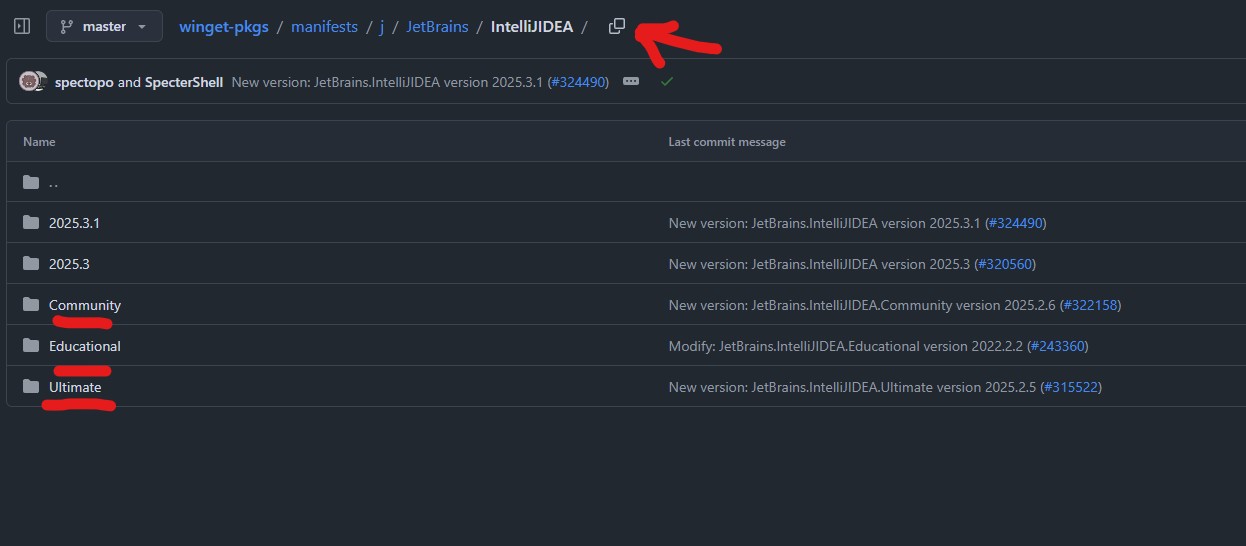
In the above image, I have opened up the IntelliJ IDEA manifest from JetBrains. At the top of the image, you can see the location of this application. The contents of this folder are the different versions of IntelliJ IDEA; as you can see, the Community, Educational, and Ultimate editions are separated into their own folders.
But what do these folders contain? And how is Winget able to download software from this repository? And the descriptions of the software that you see when you write the winget show command? This is where the manifest files come into play.
The Manifests
The manifests are just simple files containing all of the information related to a software. What does this software manifest include? Well, a manifest file contains several pieces of information related to that specific software.1 Here is an image of a manifest file as an example.
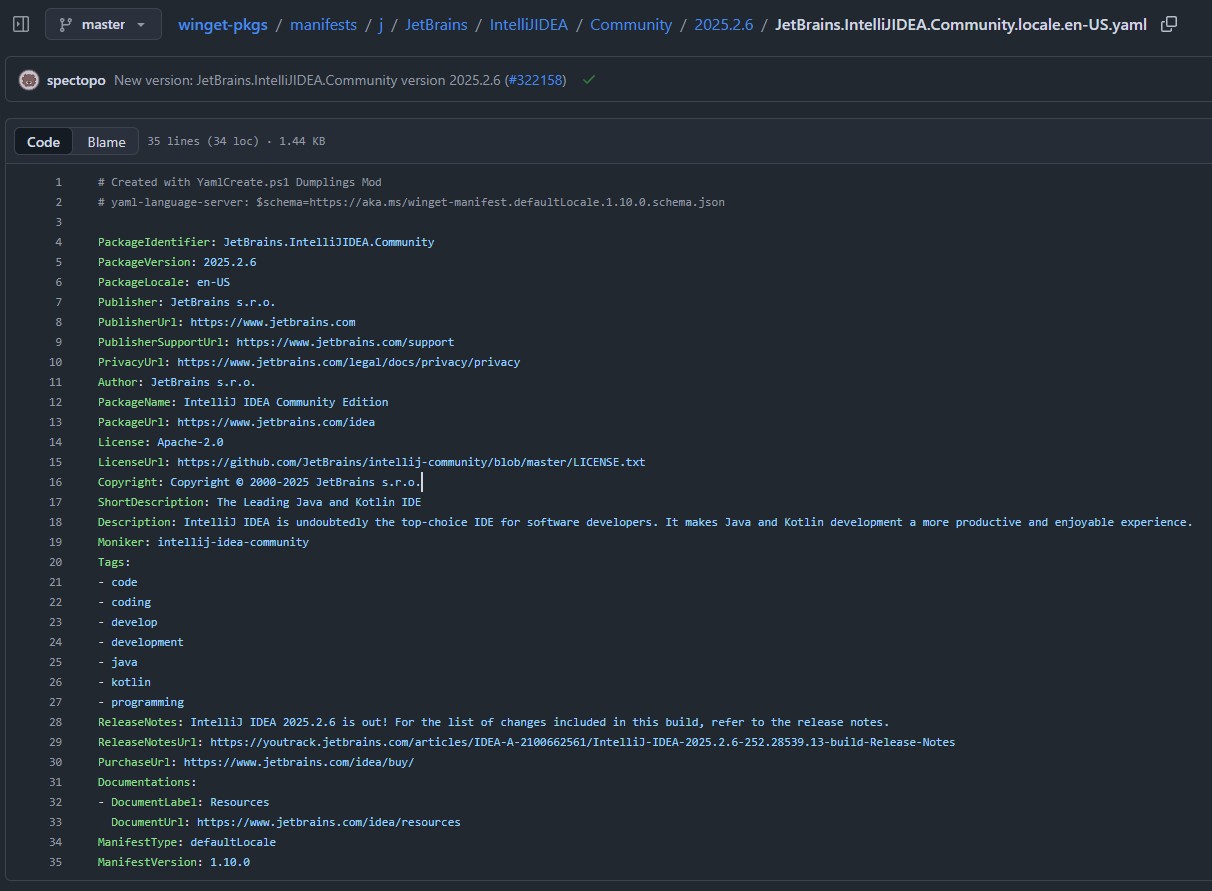
As you can see in the above image, the manifest file contains a lot of information related to the software. Such as:
- PackageIdentifier: Unique package identification
- PackageVersion: Version of the software.
- Publisher: Name of the publisher of the software.
- Description: The description that you see when you write
Winget showcommand.
Now, let me show you the output of Winget show command for the above package.

You can match the output of the command and the manifest. You will see that the output of the command is just the same as described in the manifest. So now we have understood what manifests are, and how Winget uses them to show you the details of a software. So now, let’s see how Winget installs and verifies your software.
How Winget Installs Software?
Winget Source List
Whenever you tell Winget to install a specific software, it looks to the repositories. Winget doesn’t just use Microsoft’s community repository; it also uses the Microsoft Store repository for downloading the required software. To see which repositories Winget is using, you can write the following command:
winget source listThe above command is going to give you an output showing the sources or you can say repositories that it is using.
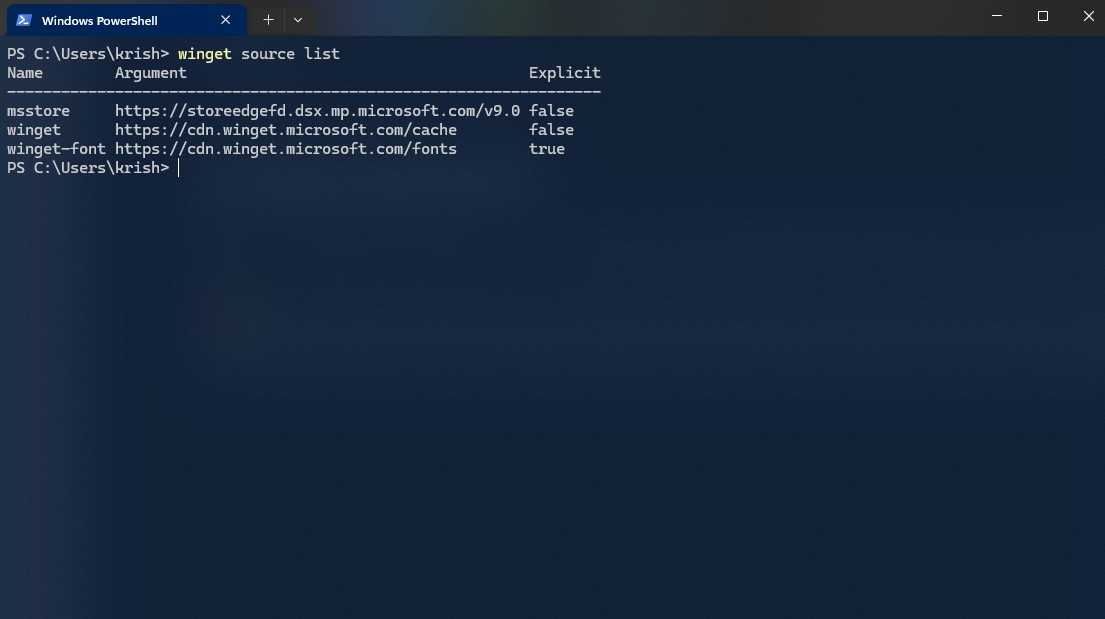
As you can see in the above image, Winget doesn’t only use the Winget community repository. In fact, there are three repositories that Winget uses:
msstore: This repository contains the manifests of software that are available on the Microsoft Store.winget: This is the community repository for other software.winget-font: Just like the name suggests, it’s for fonts.
Why is Winget Source URL Different?
If you have observed carefully, the URL of these repositories doesn’t seem familiar. In fact, the community repository’s URL is not even of GitHub; it is of the Microsoft CDN network. Why is that so?
While the community submits package data to GitHub, your computer does not connect to GitHub directly. To ensure lightning-fast searches, Microsoft compiles the data into a ‘Pre-Indexed’ file hosted on Azure CDNs. This allows Winget to search through thousands of apps instantly without waiting for a slow Git connection.
Get a deep dive on Winget Architecture: How WinGet Works ? The Magic of CDN in Package Manger
If you try to visit the Winget source URL in your browser, you will likely see an error or a blank page. This is normal. The URL is not a website meant for humans; it is a direct file host for the Pre-Indexed Database (source.msix). Without asking for that specific file, the server ignores you.
Download and Verification of Software by Winget
Winget doesn’t blindly download the software from a specific URL and install it on your system. Since the executable of the source can be altered, it is important to verify the integrity of the executable after it is downloaded. Therefore, whenever Winget pulls the executable file from the source, it also verifies if the hash of that file matches as present in the manifest.
Actually, there are two manifests for a software: one is the locale and another one is the installer manifest. The locale manifest stores all of the information related to the software, for example, its version, package, publisher, description, etc. While the installer manifest stores information related to the installation process of the software.
The installer manifest includes information such as:
- Architecture: The OS architecture related to the installer.
- Scope: The privilege level with which the installation is going to be performed.
- InstallerUrl: The URL of the actual executable used to install the software.
- InstallerSha256: The hash of the installer to verify the integrity of the executable being downloaded from the
InstallerUrl.
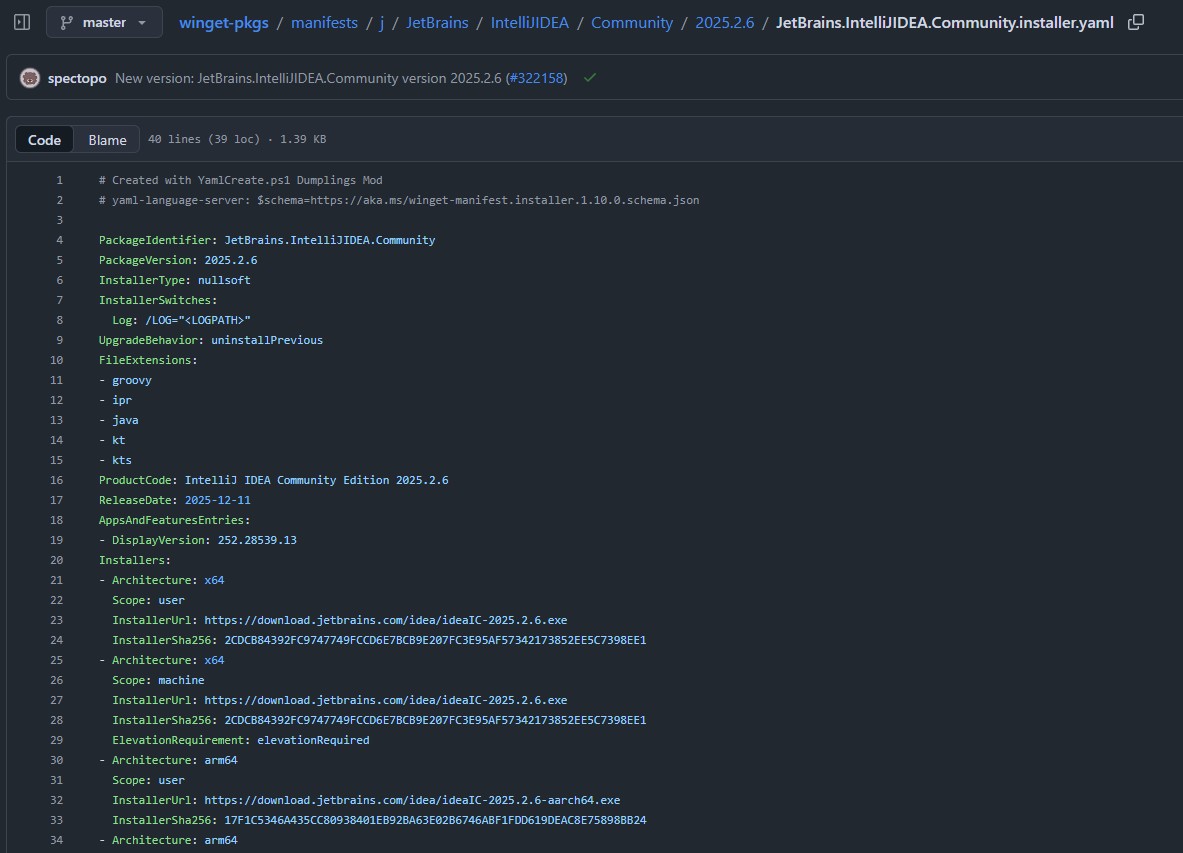
In the above image, you can clearly see that there is a specific installer for different OS architectures. On top of that, they also mention the scope of the installation, whether it is a user installation or a machine installation.
A user installation is when a software is being installed for a specific user and no other users are affected. While a system installation is a software being installed on the whole system, and each and every user can have access to the specific software.
Whenever Winget installs an executable from the InstallerUrl, it checks the manifest for its integrity verification. If the downloaded executable doesn’t have the same hash as described in the manifest, the installation is interrupted due to security concerns.
The software is installed only when the downloaded executable hash matches as mentioned in the manifest. This protects Winget from installing malicious software in case the source of the software has been compromised.